Support FAQ
Label Maker Pro Help
Support answers for label printing, Excel address labels, supported data files, date formats, field joins, and label counters.
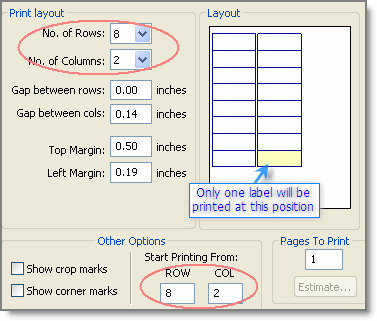
In the print window, set the sheet position where printing should begin. For example, on a 10-by-3 sheet, to print at row 8 and column 2, set rows to 8, columns to 2, and start printing from row 8, column 2.
Click Set Database on the left side, or use File > Database Settings. After connecting the data source, use Insert > Text From Database to place database fields into the label design.
Microsoft Excel, Microsoft Access, CSV, TXT, and tab-delimited files are supported.
For most cases, no SQL knowledge is required. Use File > Database Settings, choose Excel, browse to the file, select the worksheet, and then insert fields using Insert > Text From Database.
Advanced users can use SQL formatting in the data-source window. For example: SELECT Format(CStr(MyDate),'mmmm dd, yyyy') as DateNew FROM [Sheet1$] for January 5, 2005, or SELECT Format(CStr(MyDate),'mm/dd/yyyy') as DateNew FROM [Sheet1$] for 01/05/2005.
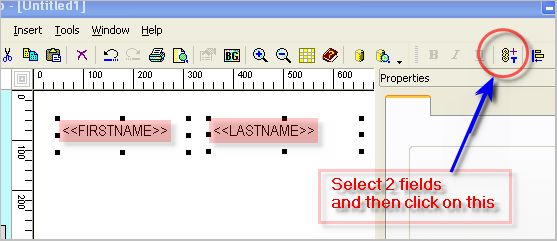
Connect to the data file, select the fields to join while holding Ctrl, then use Tools > Merge selected DB-Texts. This can combine values such as FirstName and LastName, or Address1 and Address2.
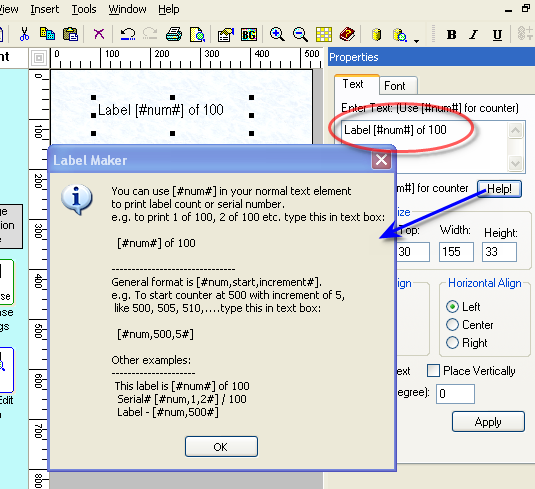
Use [#num#] in the text where the automatic number should appear.